TL,DR: This tutorial shows how to build a Gemini 2.5 Computer Use browser agent in 30 minutes, with code, pricing, and safety steps.
- Set up Playwright, get an API key, and run the agent loop that reads screenshots and returns actions, setup.
- Handle safety_decision and require user confirmation for risky actions, safety.
- Estimate token costs with the latest model prices, pricing.
- Follow the end to end build steps, build guide.
Margabagus.com – A new class of agent has arrived with Gemini 2.5 Computer Use, a specialized model designed to observe a live browser, decide the next action, and drive the interface with clicks, typing, and scrolls. Google announced the model in public preview in October 2025, highlighting lower latency and strong results on web control benchmarks, with access through Google AI Studio and Vertex AI for developers who want to automate real interfaces that do not expose APIs [1]. The official developer documentation explains that the computer_use tool returns structured function calls such as click at coordinate, type text, or select, and your client executes them in a loop while sending fresh screenshots back to the model [2]. For teams that care about cost and throughput, the new pricing page lists the gemini-2.5-computer-use-preview-10-2025 model with per million token input and output rates that you can plan against today.[3]
Gemini 2.5 Computer Use, what it is and why it matters
Gemini 2.5 Computer Use is a focused capability built on top of Gemini 2.5 Pro that learns to operate graphical user interfaces. Instead of asking you to hand craft brittle selectors, the model sees a screenshot, understands the layout, and proposes the next action as a function call. That action could be typing into a search bar, pressing a button, or moving a slider, and your runner applies the action then returns a fresh screenshot to continue the loop. Google’s model card confirms the purpose, the inputs, the outputs, and the current focus on browsers rather than full operating system control, which fits many automation needs in testing and operations [4].
This matters for modern teams because many business critical tools still limit access to APIs. Payment portals, legacy SaaS, dashboards behind logins, and internal admin consoles often demand a real browser session. Computer Use bridges that gap with a supervised agent that can help with QA runs, form workflows, and routine research across multiple sites. The blog announcement also notes performance wins on public harnesses like Online Mind2Web and WebVoyager, a useful signal if you have been evaluating competing models for browser control.[1]
Technically, the model’s interface resembles function calling. The loop is simple, the model proposes an action, you execute, you send back the new state, and repeat until success or stop criteria. This design gives you clean instrumentation and an audit trail, which are essential for production teams that must prove what the agent did on every step.[2]
Check out this fascinating article: Gemini 2.5 Computer Use, Hands-On Review: Can It Really “Use” a Computer?

Gemini 2.5 Computer Use, environment setup in minutes
Before you write code, decide where the agent will run. The documentation recommends a secure, sandboxed environment such as a VM, a container, or a hardened browser profile. The model expects screenshots at a consistent size for best accuracy, and the docs recommend a 1440 by 900 viewport during development. You can run locally with Playwright for fast iteration, or connect to a managed browser cloud when you scale.[2]
You will need a Google AI Studio API key or Vertex AI credentials. Locally, the shortest path uses Python, Playwright, and the official google genai client. The quickstart repository from Google packages a runnable CLI that you can clone, configure, and run in minutes, which is ideal for your first successful end to end loop.[5]
The reference steps below mirror Google’s docs. They install Playwright, initialize the browser, create a page with the right viewport, and send your first request to the model with the computer_use tool attached. From there, your code parses the function call in the response and executes it with Playwright commands, then posts the new screenshot back to the model.[2]
# 1) Create environment python3 -m venv .venv && source .venv/bin/activate pip install google-genai playwright playwright install chromium # 2) Export your key export GEMINI_API_KEY="YOUR_GEMINI_API_KEY"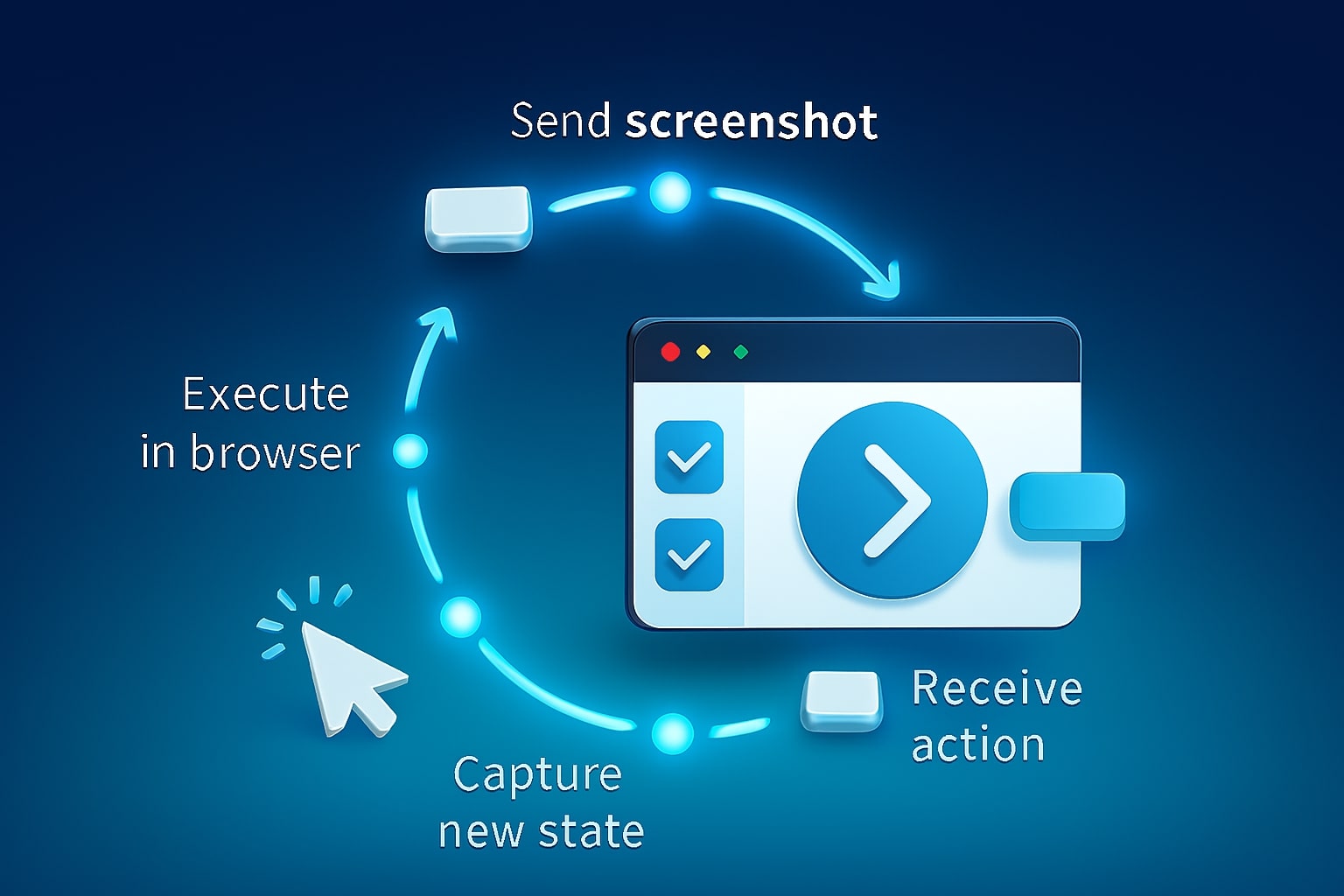
Gemini 2.5 Computer Use, the agent loop explained
The loop is the heart of Computer Use. You send a user goal and an image of the current interface state, the model returns a function call such as type_text_at or click_at, and your runner executes it. After execution, you capture a new screenshot and include the current URL so the model understands navigation context. The loop continues until the task is done or a safety rule blocks the action.[2]
A clean mental model helps teams align on responsibilities. The model is the planner and proposer, your client is the executor and guard. The model proposes, your system decides whether to allow, prompt for confirmation, or block. That separation is what makes Computer Use production friendly because it gives you clear hooks for security, logging, and policy.
Here is a compact sketch that mirrors the official examples, with a minimal Playwright runner that translates function calls into actions. It also shows how the model uses normalized coordinates that you map back to pixels.
from google import genai from google.genai import types from google.genai.types import Content, Part from playwright.sync_api import sync_playwright import io, base64, PIL.Image as Image SCREEN = (1440, 900) client = genai.Client() def screenshot_png(page): png = page.screenshot(type="png", full_page=False) return Part.from_bytes(data=png, mime_type="image/png") def to_pixels(nx, ny): # model returns 0..999, scale to viewport return int(nx * SCREEN[0] / 999), int(ny * SCREEN[1] / 999) with sync_playwright() as p: browser = p.chromium.launch(headless=False) context = browser.new_context(viewport={"width": SCREEN[0], "height": SCREEN[1]}) page = context.new_page() page.goto("https://www.google.com") tool = types.Tool( computer_use=types.ComputerUse(environment=types.Environment.ENVIRONMENT_BROWSER) ) while True: req = client.models.generate_content( model="gemini-2.5-computer-use-preview-10-2025", contents=[Content(role="user", parts=[ Part(text="Search for three best smart fridges under 4000 dollars and list them."), screenshot_png(page), Part(text=f"Current URL: {page.url}") ])], config=genai.types.GenerateContentConfig(tools=[tool]) ) # Parse function call calls = [p.function_call for p in req.candidates[0].content.parts if hasattr(p, "function_call")] if not calls: break for call in calls: name, args = call.name, call.args if name == "type_text_at": x, y = to_pixels(args["x"], args["y"]) page.mouse.click(x, y) page.keyboard.type(args["text"]) if args.get("press_enter"): page.keyboard.press("Enter") elif name == "click_at": x, y = to_pixels(args["x"], args["y"]) page.mouse.click(x, y) # add other action mappings as needed # loop will continue with new screenshot next iterationThe full list of supported actions includes typing, clicking, dragging, scrolling, selecting, and more. You can also exclude any action up front to reduce risk or tailor the agent’s ability to your UI.[2]

Gemini 2.5 Computer Use, safety and confirmation patterns
Safety is not an afterthought, it is part of the runtime. Every model response can include a safety_decision. When the decision indicates regular, your executor can proceed. When it indicates require confirmation, your app must prompt a human and only continue if the user approves. The documentation explicitly instructs developers to ask for user confirmation for high stakes actions and to avoid bypassing that requirement.[2]
The public model card details the risk categories that the team targeted during development. It calls out prompt injection on the web, unintentional failure modes such as clicking the wrong element, and the release of sensitive information. It also states that the model was trained to request human confirmation for potentially irreversible actions like purchases or accessing sensitive records. The card notes that the knowledge cutoff for this model is January 2025, which is crucial for anyone who expects it to know about very recent interface changes on external sites.[4]
In practice, a simple policy layer goes a long way. You can block domains, require confirmation for all purchase flows, and limit the maximum number of consecutive clicks to prevent runaway loops. You can also configure excluded actions to remove drag and drop or file downloads when the task does not need them, which reduces exposure surface from day one.[2]
Check out this fascinating article: Claude AI vs ChatGPT vs Gemini: Ultimate Battle 2025

Gemini 2.5 Computer Use pricing, token costs and comparison
Cost planning keeps pilots realistic. Google lists Computer Use on the Gemini API pricing page with separate rates for input and output tokens, and separate tiers for very long prompts. The page also lists the 2.5 Flash and Flash Lite families, which are often the baseline for reasoning or cheap preprocessing in multi model systems. You can combine them in your architecture, for example, use Flash to summarize an intermediate result and Computer Use to drive the UI that needs action.[3]
Below is a compact comparison that uses the current developer page values. Prices are per one million tokens in USD, which is the common basis across providers.
| Model | Input price | Output price | Notes |
|---|---|---|---|
Gemini 2.5 Computer Use Preview gemini-2.5-computer-use-preview-10-2025 |
1.25 for prompts to 200k tokens, 2.50 for prompts above 200k | 10.00 for prompts to 200k tokens, 15.00 for prompts above 200k | Specialized for browser control, preview status [3] |
Gemini 2.5 Flash gemini-2.5-flash |
0.30 text, image, video, 1.00 audio | 2.50 | Low latency hybrid reasoning, one million token context [3] |
Gemini 2.5 Flash Lite gemini-2.5-flash-lite |
0.10 text, image, video, 0.30 audio | 0.40 | Smallest, most cost efficient for scale [3] |
Two practical tips. First, Computer Use output includes thinking tokens by design, so your planning should use the output rate when estimating end to end loops. Second, long running agents may accumulate multiple turns, so put guardrails on maximum steps and implement success detection early to stop when the task is complete.[3]
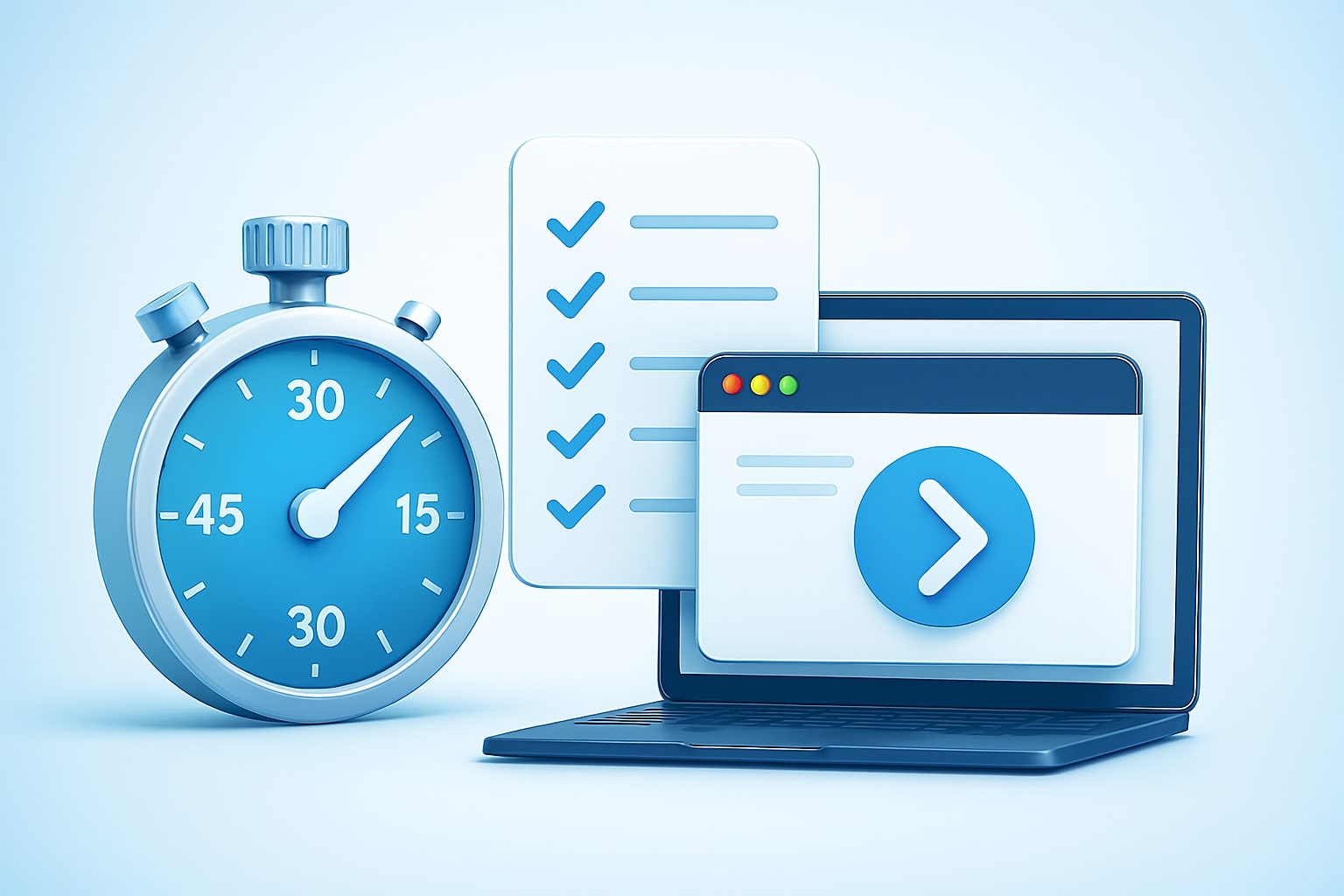
Gemini 2.5 Computer Use, build a browser agent in 30 minutes
This section gives you a time boxed path to a working agent that your team can demo today. The goal is a small, dependable loop with clear logs that fills a form, navigates, and compiles a short result.
Minute 1 to 5, prerequisites. Create a Python virtual environment, install google-genai and Playwright, then install the Chromium driver. Export your Gemini API key. If you prefer Vertex, set the project and region and authenticate with your service account. The official quickstart repository includes a ready CLI that boots with one command, which is ideal when your team wants a smoke test before any customization.[5]
Minute 6 to 10, start the browser. Launch Playwright with a 1440 by 900 viewport. Navigate to the first page you want to control, such as a public search page that will not challenge your agent with logins. Keep the console visible for fast debugging.
Minute 11 to 15, wire the model call. Create a Tool with computer_use and set the environment to browser. Send a generate_content request to the model with two things, the user goal in text and a screenshot of the current page as a PNG part. Include the current URL as another part so the model has clear navigation context.[2]
Minute 16 to 20, map actions. Parse the function_call response and switch on the action name. Start with type_text_at, click_at, and scroll, since those cover many flows. Convert normalized coordinates to pixels for your viewport, then execute the action with Playwright. After every action, capture a new screenshot.
Minute 21 to 25, implement safety. Read the safety_decision that can accompany an action. If the decision says require confirmation, show a clear prompt that describes the action in plain language and wait for user input. Only proceed on explicit consent. Keep a short whitelist of allowed domains for your first demo, and exclude drag and drop in the tool configuration to keep risk low.[2][4]
Minute 26 to 30, finish the loop and log. Add a loop counter and a success detector. For a price search task, success can be the presence of a specific CSS selector, for a form fill task, success can be a confirmation message. Log every action with timestamp, URL, and a small screenshot thumbnail for fast review during testing. This trace becomes your flight recorder when stakeholders ask what the agent did on a specific run.
If you want a zero friction start, the Google quickstart CLI already wraps these pieces. Clone the repo, install requirements, export your key, and run python main.py --query="Go to Google and type Hello World into the search bar" --env="playwright". From there you can open the code and add your own policy and logging hooks.[5]
Check out this fascinating article: Gemini AI Pro Tips: 15 Hacks You Need to Know Now
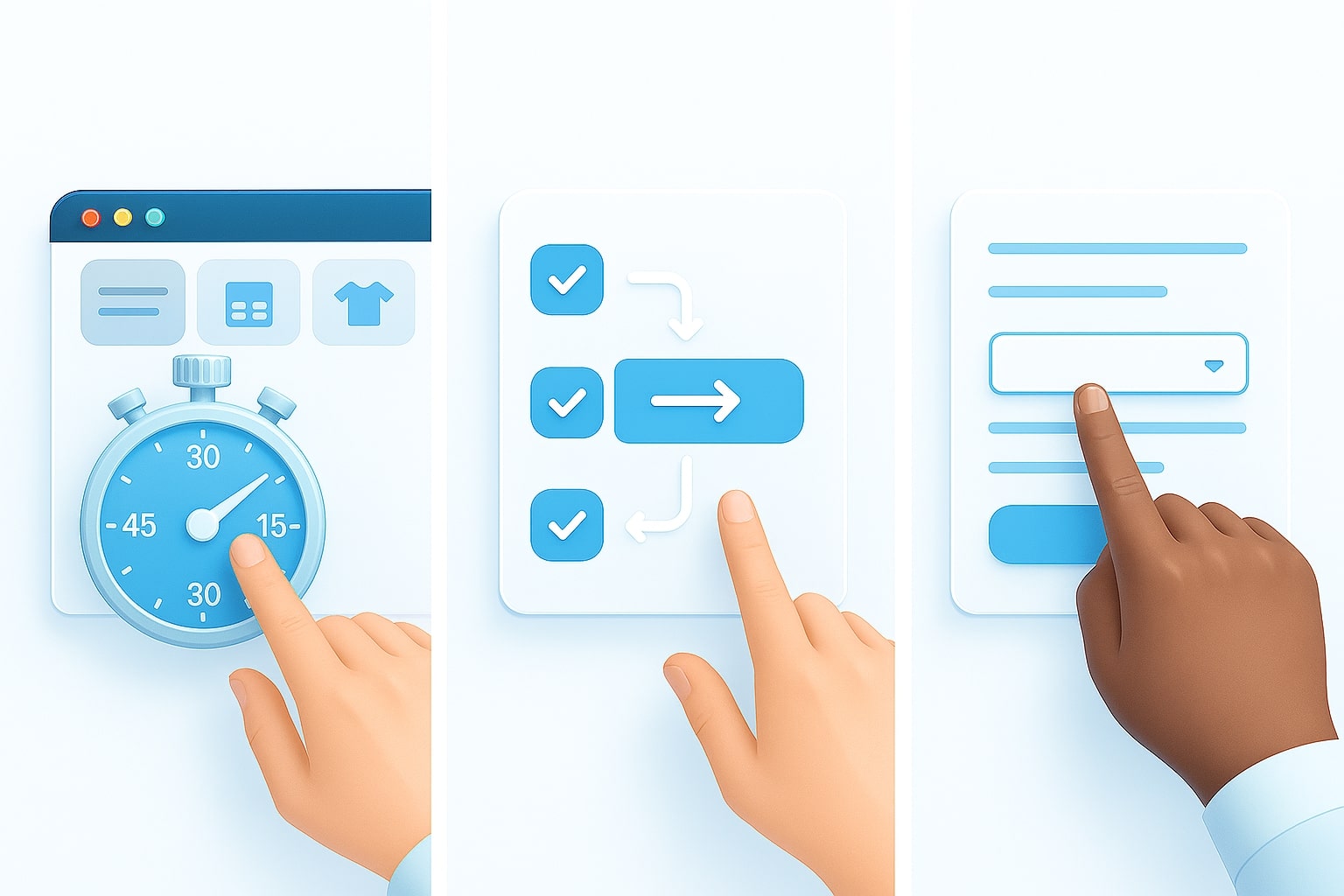
Gemini 2.5 Computer Use, test scenarios for tech and business teams
Your audience spans engineering and growth, so choose useful tasks that demonstrate both flexibility and value. A safe starter is competitive research, ask the agent to open a few product pages, extract names and prices, and present a quick list. This shows navigation, typing, clicking, and reading visual cues like price badges. It also keeps risk small because the agent never attempts a transaction.
A second scenario is QA smoke tests for your web app. Give the agent credentials for a staging environment, login flow included, then ask it to navigate a core path such as create a post, add a media item, and verify that it appears. With careful use of confirmation, you can keep the agent from changing settings that are out of scope for the test run. This saves time during releases when manual smoke tests compete with urgent fixes.[2]
A third scenario is routine form entry, such as adding a partner to a CRM after a lead fills a public form. The blog announcement shows demos that mirror this pattern and confirms that the model can fill forms, operate drop downs, and manage flows that require a few page transitions to complete the task.[1]
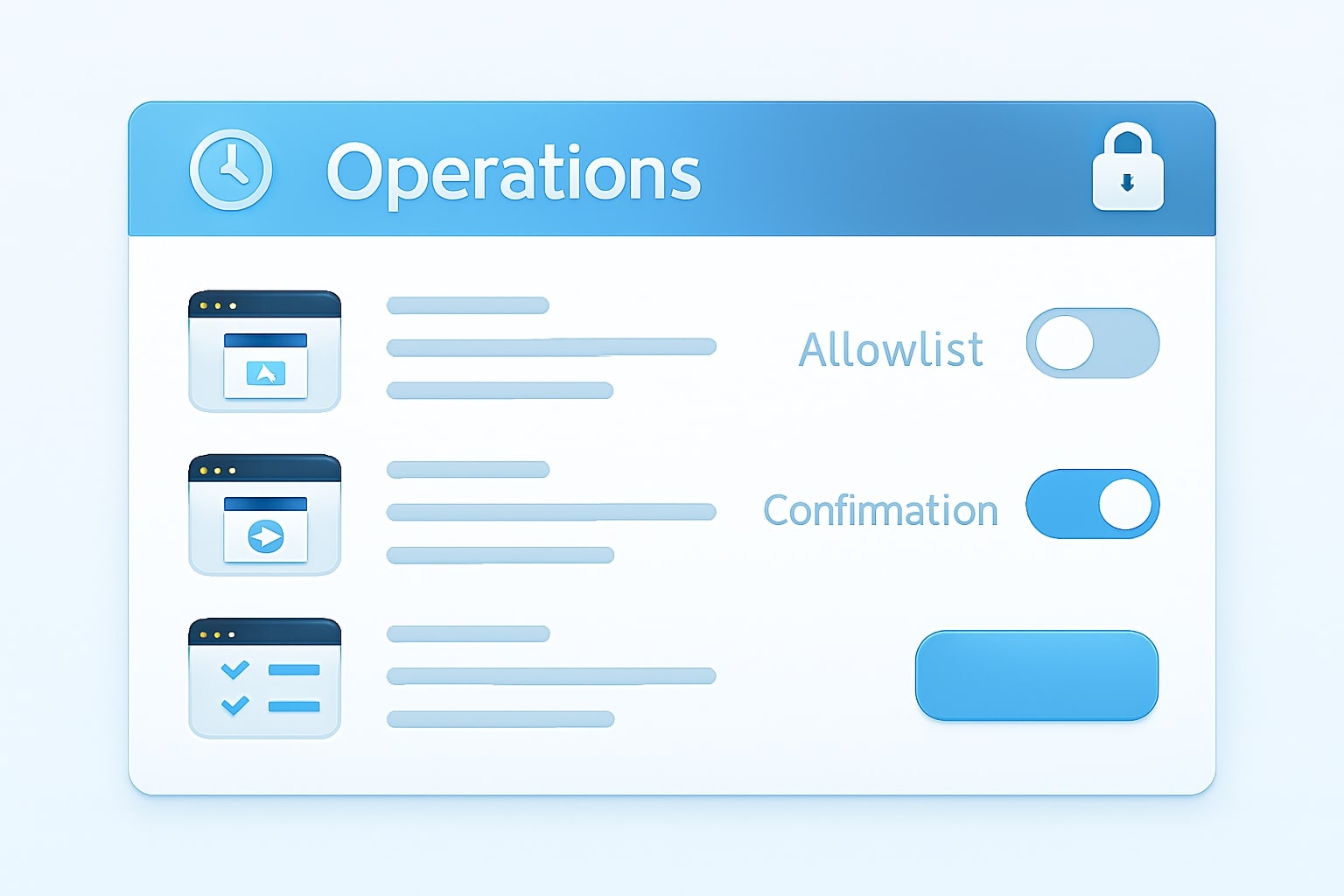
Gemini 2.5 Computer Use in production, logging and limits
Production readiness takes a few extra steps. The documentation encourages running the agent in a secure sandbox with minimal privileges. Use a dedicated browser profile that has no personal cookies and no access to sensitive resources. Include your own domain allow list, a maximum step count, and a wall clock timeout to prevent runaways.[2]
For logging, record the candidate text, the function calls, the safety decision, and a small screenshot on every step. This creates a clear audit path for compliance teams and will speed up your debugging. For rate limits, read the Gemini API limits page for your account and model. Batch runs can reduce cost when you have large, repeatable workflows, and the Flash models can pre process or summarize between Computer Use steps when that makes economic sense.[3]
If you intend to scale beyond local machines, Browserbase’s write up explains how they evaluated Computer Use at volume and how a browser cloud reduces time to experiment. They also publish an open evaluation set and show how to reproduce their runs, which can help your team build a defensible internal benchmark before committing to a large rollout [6].

Gemini 2.5 Computer Use, troubleshooting and tuning
Most early issues are practical rather than conceptual. If the agent clicks the wrong element, increase the viewport clarity and reduce overlapping banners by handling cookie consent early. If the agent types into the wrong field, confirm that you pass the current URL with every screenshot so the model understands context. If the loop stalls, implement a back off and a fresh page reload on the next step.
For accuracy, supply concise goals and avoid ambiguous wording. For reliability, remove actions you do not need with the excluded_predefined_functions list. For speed, reduce page clutter and keep your screenshots consistent in size. For cost, cap the maximum steps and consider a hybrid, use Flash to pre digest long content and let Computer Use handle the clicks when a real interaction is required.[2][3]
Finally, elevate quality with a simple evaluator. Decide your success measures before you run, collect run traces, and review them like unit test snapshots. Over a week, you will see patterns that suggest small prompt changes or additional guardrails that push your success rate higher with no significant cost increase.
Share your result and help others learn
A focused thirty minute build is enough to convince a stakeholder that Gemini 2.5 Computer Use can automate real web tasks with clarity and control. Start with a safe demo, show the logs, show the safety prompts, and show the outcome. If you try the steps in this guide and adapt them to your workflow, leave a comment with your findings or questions, your feedback will help others ship faster too.
[tt_anchor_id text=”Gemini 2.5 Computer Use, environment setup in minutes”]
[tt_anchor_audit]
Ready to apply this to your business?
Let's Talk Strategy →