
WordPress Security Guide 2026
- Update WordPress core, plugins, and themes promptly, while testing major changes and keeping a recoverable backup.
- Protect administrator access with unique accounts, strong passwords, two factor authentication, rate limiting, and regular user audits.
- Store database and file backups outside the hosting account, retain several restore points, and perform real restoration tests.
- Block PHP execution in upload directories, restrict file permissions, and verify core and plugin files against trusted checksums.
- Audit REST API routes, XML RPC, Application Passwords, WP Cron, firewall rules, logs, and unexpected administrator activity.
- When a website is hacked, preserve evidence, rotate credentials, rebuild from trusted sources, close the entry point, and monitor for reinfection.
WordPress 7.0.2 arrived on July 17, 2026, as an urgent security release addressing one critical issue and one high severity issue, including a REST API related vulnerability that could lead to remote code execution under affected conditions. WordPress enabled forced automatic updates for vulnerable installations, a rare but useful reminder that website security cannot depend on an administrator noticing a dashboard notification in time. This WordPress security guide explains how to build a practical defense system around updates, backups, administrator access, login protection, file integrity, exposed endpoints, monitoring, and incident response, so keep reading until the end for a schedule you can apply without turning website maintenance into a full time security job. [1]
WordPress Security Guide 2026 at a Glance
A secure WordPress website is not created by one plugin or one firewall setting. Security comes from several controls that overlap, so the failure of one layer does not immediately expose the whole website. The following table summarizes the controls that matter most and the risk each one reduces.
| Security layer | Recommended action | Main risk reduced | Suggested frequency |
|---|---|---|---|
| WordPress core | Install supported security releases promptly | Known core vulnerabilities | Immediately |
| Plugins and themes | Remove unused components and update maintained products | Vulnerable extensions and abandoned code | Weekly |
| Backups | Store database and files outside the hosting account and test restoration | Malware, deletion, failed updates, ransomware | Daily or weekly |
| Administrator access | Use unique accounts, two factor authentication, and periodic access reviews | Credential theft and unauthorized access | Monthly |
| Login protection | Apply rate limiting, bot filtering, and secure password policies | Brute force and credential stuffing | Continuous |
| File protection | Restrict permissions and block PHP execution in uploads | Web shells and malicious file execution | After setup and server changes |
| Firewall | Use managed rules and targeted rate limits | Exploit attempts and automated abuse | Continuous |
| Integrity monitoring | Compare core and plugin files with trusted checksums | Modified or injected files | Weekly |
| Endpoint review | Audit REST API, XML RPC, cron, and application passwords | Unnecessary exposed functionality | Monthly |
| Logging | Record login, account, plugin, file, and configuration events | Undetected compromise | Continuous |
| Incident response | Isolate, preserve evidence, rotate credentials, rebuild, and validate | Persistent reinfection | When compromise is suspected |
Establish a WordPress Security Baseline Before Installing Plugins
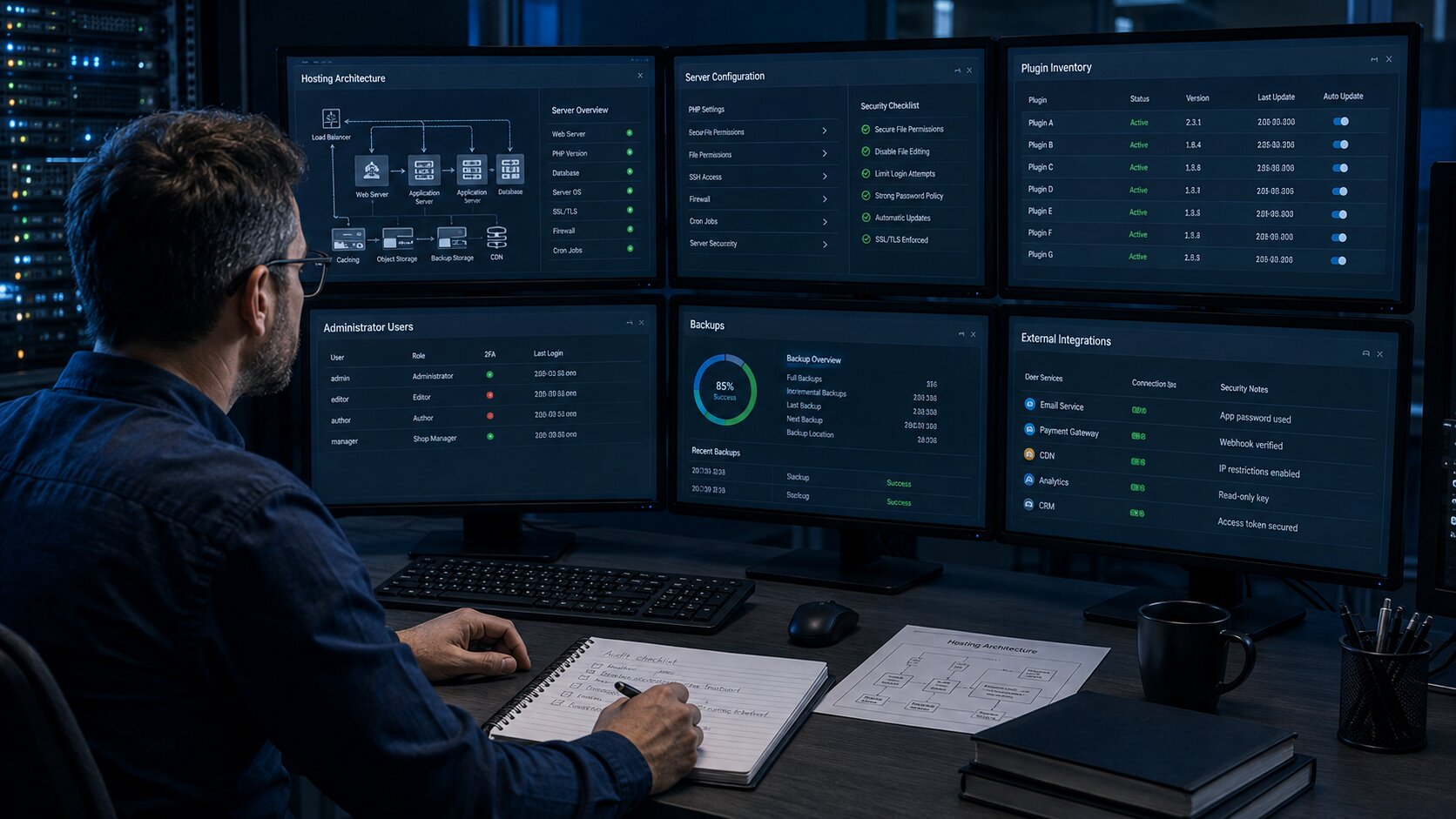
Installing a security plugin before understanding the hosting environment often creates a false sense of protection. A plugin operates inside WordPress, which means it may not be able to stop attacks that happen at the server, account, database, or content delivery network level. A reliable security baseline begins by identifying what exists, who controls it, and which components are actually necessary.
Start by documenting the website architecture. Record the hosting provider, PHP version, database version, domain registrar, DNS provider, content delivery network, active plugins, active theme, administrator accounts, backup locations, scheduled tasks, email service, and external integrations. This inventory becomes especially valuable during an incident because it helps distinguish legitimate components from unfamiliar additions.
Confirm That the Hosting Environment Is Still Supported
The WordPress dashboard can be fully updated while the underlying server remains outdated. Unsupported PHP versions, old database engines, weak account isolation, and poorly configured file ownership can undermine protections at the application level. Ask the hosting provider which operating system, PHP branch, web server, database engine, malware controls, and account isolation model are currently in use.
Review the Site Health screen, but do not treat it as a complete security audit. Site Health can identify several configuration concerns, yet it cannot determine whether the hosting control panel has been compromised or whether another website in the same account can write into your files. For business critical websites, separate unrelated websites into different hosting accounts or isolated containers whenever practical.
Remove Components You No Longer Need
Inactive plugins and themes still leave files on the server. If vulnerable code remains reachable directly, deactivation alone may not remove the underlying risk. Delete unused plugins, abandoned themes, old backup archives, installation packages, temporary migration files, database exports, and test scripts after confirming that they are no longer required.
Keep one maintained fallback theme for troubleshooting, but remove old themes that serve no operational purpose. Avoid downloading premium plugins or themes from unofficial sources because modified packages may contain hidden administrator creation routines, remote access code, advertising injection, or credential stealing functions. WordPress advises downloading WordPress itself only from official sources and keeping installed software current. [2]
Disable Browser Based File Editing
An administrator can normally edit plugin and theme files through the WordPress dashboard. That convenience becomes dangerous when an administrator session or account is stolen, because the attacker may be able to insert executable PHP code without using hosting access. Add the following setting above the final stop editing line in wp-config.php.
define( 'DISALLOW_FILE_EDIT', true );
This setting does not prevent legitimate deployment through SFTP, SSH, version control, or a managed workflow. It simply removes one convenient path for turning a compromised WordPress administrator session into server side code execution. WordPress documentation explicitly notes that administrator users can otherwise edit active plugin and theme files in real time. [3]
Build a Safe WordPress Core, Theme, and Plugin Update Strategy
Updates are among the most effective security controls, but careless updates can also break production websites. The answer is not to postpone updates indefinitely. The better approach is to classify updates by urgency, maintain recoverable backups, test changes when necessary, and validate the website immediately after deployment.
WordPress 7.0.2 illustrates why security releases need a faster process than normal feature releases. The official release announcement advised immediate updating and enabled forced updates for affected installations because of the severity of the vulnerabilities. Older affected branches received backported fixes, while the release archive identified 7.0.2 as the actively maintained release in the 7.0 series at the time of publication. [1]
Separate Security Updates from Feature Updates
A minor security release should usually be installed sooner than a major feature release. Security releases are intended to close known weaknesses, while major releases can introduce broader compatibility changes that deserve staging tests. Create an internal rule such as immediate installation for critical security fixes, installation within twenty four hours for high risk fixes, and staged evaluation for major feature upgrades.
Do not disable WordPress minor automatic updates without a well defined replacement process. WordPress enables minor core updates by default and strongly discourages disabling all automatic updates because they are an important way to keep websites protected. Major core updates, plugin updates, and theme updates can be configured separately, allowing a website owner to balance speed with compatibility. [4]
Evaluate Plugin Risk Before Updating or Installing
WordPress plugin security begins before activation. Check whether the plugin is actively maintained, compatible with your WordPress version, distributed through a trustworthy source, supported by a real vendor, and necessary for the website. A plugin with extensive permissions, file upload features, payment processing, user registration, form handling, or remote API access deserves closer scrutiny than a simple presentation plugin.
Review the change log and security notices before significant updates. Test complex ecommerce, membership, learning management, multilingual, caching, and page builder updates in staging whenever the website depends heavily on them. After updating, inspect the public pages, login process, checkout or lead forms, scheduled tasks, emails, error logs, and cache behavior.
Validate Updates Instead of Trusting the Green Success Message
A successful update notice only confirms that the update process completed from WordPress’s perspective. It does not guarantee that every page, scheduled task, integration, or business function still works. Run a focused validation covering the homepage, several templates, forms, user authentication, mobile display, structured data, payment flow, and administrative functions relevant to the website.
For command line access, useful checks include:
wp core version
wp core check-update
wp plugin list --update=available
wp theme list --update=available
wp cron test
Store the result in a maintenance record when managing client or revenue generating websites. A simple record containing the date, operator, changed components, backup reference, validation results, and rollback decision creates accountability and makes future troubleshooting much faster.
Create WordPress Backups That Can Actually Be Restored
A backup is only useful when it contains the required data, remains available after the primary server fails, and can be restored within an acceptable period. Many website owners discover too late that their backup excludes uploads, stores only the database, is saved inside the compromised hosting account, or has never been tested. WordPress backup and recovery should therefore be designed as an operational process rather than a plugin checkbox.
WordPress consists of at least two distinct backup groups, the database and the filesystem. The database normally contains posts, pages, settings, users, plugin data, orders, and other structured content. The filesystem contains uploads, themes, plugins, configuration files, custom code, language files, and sometimes generated or application specific data. [5]
Use the Three Copy Backup Principle
Maintain at least three copies of important website data, using at least two different storage systems, with at least one copy located outside the production hosting environment. For example, keep a host level snapshot, an encrypted cloud backup, and a periodically downloaded archive stored in a separate controlled location. The exact design can vary, but one compromised hosting account should not provide access to every backup.
Do not leave database exports in a publicly reachable directory such as public_html, the WordPress root, or the uploads folder. SQL files may expose user records, password hashes, API credentials, private form submissions, configuration data, and customer information. Remove temporary archives immediately after migration or maintenance work.
Match Backup Frequency to the Rate of Change
A brochure website updated twice a month may not need the same backup schedule as an online store processing orders every hour. Set the recovery point objective according to how much data the business can afford to lose. High activity websites may require frequent database backups, while files can be backed up less often if uploads and code change less frequently.
Keep several generations rather than only the newest backup. Malware may remain unnoticed for days or weeks, which means the newest backup can already contain the compromise. Retention across daily, weekly, and monthly restore points gives the response team more options.
Perform a Real Restore Test
Downloading a backup archive is not a restore test. A meaningful test imports the database, restores the required files, updates environment specific URLs when necessary, verifies login, checks media, tests forms, confirms scheduled tasks, and validates important business functions. Perform the test in an isolated staging or local environment rather than overwriting production.
Document the restoration procedure so it can be followed during a stressful incident. Include backup locations, decryption details, required accounts, database import commands, DNS considerations, cache clearing, email suppression in staging, and post restoration tests. WordPress documentation emphasizes that proper database and file backups allow a site to be returned to normal, while CISA guidance also recommends testing backup procedures and keeping backups isolated from systems that could spread malware. [5] [6]
Strengthen WordPress Login Security with Two Factor Authentication
Passwords remain necessary, but they should not be the only barrier protecting administrator access. Reused passwords, phishing, browser malware, credential leaks, and social engineering can defeat even a password that appears complex. WordPress login security should combine unique credentials, password management, two factor authentication, rate limiting, session review, and account monitoring.
WordPress does not currently provide native two factor authentication for normal dashboard logins, so a maintained plugin or identity provider is required. Choose an option that supports authenticator applications, hardware security keys, passkeys, or another phishing resistant method where possible. Avoid relying only on email codes when the same email account can reset the WordPress password.
Require Two Factor Authentication for Privileged Accounts
Enable two factor authentication for administrators, editors with sensitive access, developers, hosting accounts, domain registrar accounts, DNS providers, backup systems, transactional email services, and content delivery networks. Protecting WordPress while leaving the hosting panel or registrar secured by a reused password leaves a direct route around the application.
Issue recovery codes and store them somewhere protected but accessible during device loss. Do not keep the only recovery code inside the same phone, browser profile, or password manager session used for daily access. Test account recovery before requiring two factor authentication across a team.
Use Unique Accounts Instead of Shared Administrator Logins
Every person should have an individual account. Shared usernames make it difficult to determine who changed a plugin, created a user, deleted content, or altered a security setting. Individual accounts also allow access to be revoked without changing credentials for the entire team.
Avoid assigning the Administrator role for convenience. Writers usually need Author or Editor access, customer support staff may need a specialized role, and contractors may only need temporary access to a staging site. Remove access as soon as the task or employment relationship ends.
Protect the Login Endpoint from Automated Abuse
Changing the login URL may reduce background noise, but it should not be treated as the primary defense. Attackers can discover login paths through redirects, page source, plugins, network requests, or other indicators. Stronger controls include rate limiting, bot detection, two factor authentication, breached credential detection, and monitoring of failed login patterns.
Configure rate limits carefully so legitimate users behind shared networks are not blocked unnecessarily. Cloudflare recommends rate limiting for sensitive endpoints such as login pages and notes that combining more than one request characteristic can reduce identification gaps. Rate limiting should also be paired with bot management or application controls rather than used as the only defense. [7]
Apply Least Privilege Across WordPress Users and Services
Least privilege means giving each person, process, and integration only the access required to perform its current task. This principle limits the damage caused by compromised credentials, mistakes, malicious insiders, vulnerable plugins, and abandoned integrations. It also makes unusual behavior easier to identify because fewer accounts are expected to perform sensitive actions.
A monthly administrator review is one of the most valuable entries in a WordPress security checklist. Examine every user with Administrator, Editor, Shop Manager, or custom privileged roles. Confirm the owner, purpose, last expected use, email address, two factor status, and whether the access is still required.
Audit Administrators and Unexpected Accounts
Look for unfamiliar usernames, recently created administrators, generic addresses, duplicate accounts, changed email addresses, and accounts belonging to former employees or contractors. An attacker may create a second administrator as a persistence method, even after the original vulnerability is fixed. Removing only the visible malware would not remove that access.
With WP CLI, administrators can inspect users using commands such as:
wp user list --fields=ID,user_login,user_email,roles,user_registered
Compare the result with an approved account list. Do not delete an unfamiliar account before preserving relevant evidence if compromise is suspected, because registration dates, metadata, logs, and account activity may support the investigation.
Review Application Passwords and API Credentials
Application Passwords are intended for API authentication, including approved REST API and XML RPC integrations, not for normal interactive browser login. They can be individually revoked, which makes them safer than sharing a user’s main password with an external service. However, forgotten Application Passwords can become persistent access paths if integrations are abandoned. [8]
Review them during the monthly account audit. Remove credentials belonging to disconnected mobile apps, old automation platforms, previous developers, test systems, publishing tools, and integrations that no longer exist. Rotate API keys and webhooks whenever ownership changes or a connected service is compromised.
Protect WordPress Uploads and Prevent PHP Execution
The uploads directory needs to accept files, which makes it an attractive target for malicious upload attempts. Under normal operation, image, document, audio, and video files should not need to execute as PHP. Blocking script execution in uploads can therefore prevent an uploaded web shell from running, even when another weakness allows the file to be placed on the server.
This control is especially useful for websites with forms, user uploads, membership features, ecommerce imports, document submission, media libraries, or custom upload endpoints. It does not replace file validation, because malicious content can still create storage, phishing, or distribution risks. It simply removes one common path from file upload to code execution.
Block PHP Files in Apache Upload Directories
For Apache environments that permit local .htaccess rules, place a rule inside wp-content/uploads/.htaccess such as:
<FilesMatch "\.(php|php[0-9]|phtml|phar)$">
    Require all denied
</FilesMatch>
Older Apache configurations may require different syntax, so confirm compatibility with the hosting provider. Test the rule using a harmless file in a controlled environment and verify that normal media delivery still works. Do not upload executable test code to a production website.
Use an Equivalent Server Rule for Nginx
Nginx does not process .htaccess files. The restriction must be added to the server configuration, often using a location rule that denies PHP execution beneath the uploads path. Because configuration layouts differ, the hosting provider or server administrator should implement and test the exact rule.
Also review other writable directories created by plugins, cache systems, import tools, backup products, and file managers. Any writable directory that can be reached through the web should be evaluated for executable file risk. A secure uploads directory does not help if another plugin creates a publicly writable folder that allows PHP execution.
Keep File Permissions Restrictive
WordPress documentation presents 755 for directories and 644 for files as a common permission scheme, while noting that ownership and hosting configuration matter. Avoid using 777 as a permanent fix for upload or update errors because it grants broad write access. Correct ownership and group configuration instead of making the entire installation world writable. [2]
Protect wp-config.php according to the server environment because it contains database credentials, authentication salts, and other sensitive settings. File permissions alone are not sufficient if multiple sites share the same compromised account, so combine permissions with account isolation, supported server software, and reliable monitoring.
Use a Firewall, Rate Limiting, and Bot Protection Together
A web application firewall can block many known exploit patterns before requests reach WordPress. Rate limiting can reduce repeated login attempts, scraping, abusive API traffic, and resource exhaustion. Bot controls can distinguish some automated traffic from normal visitors, creating a layered edge defense that reduces both security risk and server load.
These tools are valuable, but aggressive rules can block payment providers, search engine crawlers, monitoring services, webhooks, mobile applications, and legitimate administrators. Begin with managed rules, log or challenge suspicious traffic, then introduce targeted blocking after reviewing real traffic. Security rules should be measured by both attacks stopped and legitimate requests preserved.
Protect Sensitive WordPress Paths
Prioritize controls for /wp-login.php, authenticated requests, password reset endpoints, XML RPC when enabled, form submission routes, ecommerce account pages, search endpoints, and expensive REST API operations. Rate limits should reflect normal website behavior rather than copying a universal threshold from another website.
Allowlist trusted service requests only when their source can be reliably identified. Avoid broad allowlists for entire countries, hosting providers, or user agent strings because attackers can imitate weak identifiers. Document every exception and review it periodically.
Do Not Use the Firewall as a Substitute for Patching
A firewall may provide temporary protection against known exploit patterns, but it cannot reliably compensate for every vulnerable plugin or custom code flaw. Attack techniques change, encrypted or obfuscated payloads may bypass signatures, and authenticated vulnerabilities may occur after a legitimate login. Continue updating or removing vulnerable software even when the firewall reports that an exploit is being blocked.
Treat virtual patches as time buying controls. They provide a useful window to test an update or replace an abandoned component, but the underlying vulnerability remains present until the code is fixed or removed. This distinction matters when deciding whether a website is genuinely remediated.
Detect WordPress Malware and Verify File Integrity
Malware scanning should look for more than obvious filenames. Modern compromises may inject code into legitimate plugins, add scheduled tasks, create hidden administrators, alter database options, modify .htaccess, place files in writable directories, replace JavaScript, create malicious must use plugins, or add payloads that activate only for certain visitors. WordPress malware protection therefore requires file, database, account, traffic, and configuration inspection.
Signature scanners are useful for known threats, but they can produce false positives and miss customized code. Integrity verification provides another perspective by comparing installed files against trusted copies. Neither method proves that the website is clean on its own.
Verify WordPress Core Checksums
WP CLI can compare WordPress core files with official checksums:
wp core verify-checksums
Unexpected modified or additional core files deserve investigation. Some legitimate hosting modifications may cause differences, but core files generally should match the official release. The official WP CLI command verifies WordPress files against WordPress.org checksums. [9]
Verify Plugin Checksums Where Available
Plugins distributed through WordPress.org may support checksum verification:
wp plugin verify-checksums --all
A warning does not always mean malware because premium, custom, modified, or unsupported plugin versions may not have matching public checksums. Investigate each mismatch by comparing it with a trusted vendor package, deployment repository, or known clean backup. Never delete files blindly from a production site solely because an automated scanner flags them.
Inspect High Risk Persistence Locations
Review wp-content/mu-plugins, active plugins, active themes, uploads subdirectories, root configuration files, scheduled events, administrator accounts, database options, recently modified PHP files, and unexpected cron jobs. Must use plugins load automatically and may not appear in the normal plugin list, making them a valuable location for legitimate host tools and attacker persistence alike.
Also inspect server level cron jobs, hosting control panel tasks, SSH keys, FTP accounts, database users, deployment tokens, and DNS settings. Cleaning only WordPress files will not solve a compromise that began through the hosting account or an infected administrator device.
Review Cron, REST API, XML RPC, and Exposed Endpoints
Public endpoints are not automatically vulnerabilities. WordPress depends on several interfaces for block editor functions, scheduled events, remote publishing, integrations, and plugin features. The security goal is to understand which interfaces are required, keep them patched, authenticate sensitive operations, and restrict unnecessary capabilities without breaking core functionality.
WordPress documentation explicitly advises against disabling the REST API entirely because modern WordPress administration depends on it. Public content that is already visible on the website is generally also available through the REST API, while private content requires authentication unless a plugin or custom implementation exposes it incorrectly. [10]
Audit the REST API Instead of Disabling It Blindly
Open /wp-json/ and review the registered namespaces and routes. The presence of a route is not proof of exposure, but unfamiliar plugin namespaces should be investigated. Test whether sensitive data, private metadata, unpublished content, user details, configuration values, or privileged actions are accessible without proper authentication.
For external integrations, use revocable Application Passwords over HTTPS rather than sharing a normal administrator password. Assign the integration to an account with the minimum necessary role. Remove the credential when the integration is retired.
Disable XML RPC Only When It Is Not Required
XML RPC can support mobile publishing, remote tools, Application Password authentication, and services that still depend on it. If the website does not use these functions, disabling authenticated XML RPC methods can reduce unnecessary attack surface and automated login abuse. Confirm dependencies before making the change.
WordPress provides an xmlrpc_enabled filter for controlling XML RPC methods that require authentication. A firewall can also rate limit or block requests to xmlrpc.php, but edge rules should be tested against legitimate integrations. [11]
Confirm That WP Cron Is Working
WP Cron supports important functions such as update checks and scheduled publishing. If it is disabled without a functioning server cron replacement, security scans, backups, cleanup tasks, email queues, and plugin maintenance jobs may silently stop. WordPress documents that several core features depend on WP Cron. [12]
Check scheduled events and test cron spawning:
wp cron event list
wp cron test
When using a real server cron, confirm that it runs at the intended interval and invokes WordPress correctly. Document DISABLE_WP_CRON settings and verify that the replacement task survives hosting migrations, control panel changes, and server rebuilds.
Configure Logging and Learn the Signs of Compromise
Security logs are useful only when they record meaningful events, use reliable timestamps, remain available after an incident, and are reviewed. A log stored exclusively inside a compromised hosting account can be altered or deleted by an attacker. Send important logs to a protected external destination when the website’s risk level justifies it.
OWASP recommends logging authentication successes and failures, authorization failures, administrative actions, configuration changes, suspicious input, and other security relevant events. Logs should support investigation without exposing passwords, authentication tokens, payment data, or unnecessary personal information. [13]
Record Events That Explain What Changed
Useful WordPress events include successful and failed logins, password resets, new users, role changes, plugin installation, plugin activation, plugin deletion, theme changes, file edits, settings changes, Application Password creation, export actions, and security control changes. Server logs should also retain request paths, response status, timestamps, source information, and relevant error details.
Protect log access and define retention. A small brochure website may need a simpler approach than an ecommerce platform, but both should retain enough history to investigate when an unfamiliar administrator appeared or when a malicious redirect began.
Watch for Practical Indicators of Compromise
Warning signs include unfamiliar administrators, unexpected redirects, injected advertisements, search results showing spam pages, browser security warnings, sudden outbound email, unexplained CPU usage, modified core files, unknown PHP files in uploads, new scheduled tasks, changed DNS records, disabled security plugins, altered home URLs, missing logs, and unusual traffic to administrative endpoints.
A single sign does not always prove compromise. For example, high CPU usage can come from a legitimate traffic spike or broken plugin loop. Investigate combinations of signals, establish a timeline, and preserve evidence before making destructive changes.
What to Do When a WordPress Website Is Hacked
A hacked website should be treated as an incident, not merely a collection of suspicious files. Deleting one payload without fixing the original access path often leads to reinfection. A disciplined response contains the damage, preserves useful evidence, identifies the entry point, removes persistence, rebuilds trust, and monitors the recovered system.
Do not begin by installing several scanners and deleting everything they flag. That approach can destroy evidence, damage legitimate code, and leave hidden access untouched. Record what you observe, when it began, which accounts are involved, and which systems may be affected.
Contain the Website Without Destroying Evidence
Restrict public access when the site is distributing malware, stealing credentials, redirecting visitors, or exposing private data. Use a maintenance page, firewall restriction, or hosting isolation method that does not overwrite the compromised files. Preserve server logs, access logs, error logs, database copies, file timestamps, cron configuration, account lists, and a snapshot of the affected environment.
Contact the hosting provider if server or account compromise is possible. For ecommerce, membership, healthcare, financial, or personal data incidents, assess contractual, legal, payment processor, and privacy notification obligations with qualified professionals.
Rotate Credentials from a Clean Device
Change hosting, SSH, SFTP, database, WordPress, registrar, DNS, content delivery network, email, backup, analytics, payment, and API credentials that could have been exposed. Perform the rotation from a trusted device, because changing passwords on an infected computer may simply provide the attacker with the new credentials.
Invalidate active WordPress sessions and rotate authentication salts. Revoke unknown Application Passwords, API keys, SSH keys, FTP accounts, deployment tokens, and webhooks. Do not assume that changing the WordPress administrator password alone is sufficient.
Rebuild from Trusted Sources
Replace WordPress core files with the correct official release. Reinstall plugins and themes from verified vendor packages rather than copying questionable files from the compromised installation. Restore uploads and content only after scanning and validation.
A clean backup can accelerate recovery, but it must come from before the compromise and should not reintroduce the vulnerable component that enabled the attack. Apply all required updates, remove abandoned software, correct permissions, rebuild configuration, and close the original access path before returning the site to production.
Validate the Recovery
Verify checksums, scan files and the database, review users, inspect scheduled tasks, check must use plugins, confirm DNS, examine outbound email, test public pages, and monitor logs. Search indexed pages for spam remnants and request review from browsers, search engines, or security providers when warnings were issued.
Continue heightened monitoring after restoration. Reinfection may indicate missed persistence, compromised external credentials, a vulnerable integration, or another website in the same hosting account. Recovery is complete only when the entry point and persistence mechanisms have been addressed.
WordPress Security Checklist for Weekly and Monthly Maintenance
Security becomes manageable when tasks are divided by urgency and frequency. A short recurring routine is more reliable than a large audit performed only after something goes wrong. The following checklist turns WordPress security best practices into a repeatable maintenance plan.
Adjust the timing according to website activity, business risk, and available automation. A frequently updated store or membership platform may need daily checks, while a small informational website may use weekly reviews. Security releases and compromise warnings should always override the normal schedule.
Weekly WordPress Security Checklist
- Install available security updates after confirming a valid backup.
- Review pending WordPress core, plugin, and theme updates.
- Remove plugins, themes, and accounts that are no longer required.
- Confirm that scheduled backups completed successfully.
- Review administrator logins and failed login spikes.
- Check security, server, and PHP error logs for unusual activity.
- Verify WordPress core checksums.
- Verify plugin checksums where official checksums are available.
- Review unexpected files created in writable directories.
- Test key pages, forms, checkout, email delivery, and scheduled tasks.
Monthly WordPress Security Checklist
- Audit all privileged WordPress accounts.
- Confirm two factor authentication for administrators.
- Review hosting, domain, DNS, and external service access.
- Revoke obsolete Application Passwords and API credentials.
- Review REST API namespaces, XML RPC requirements, and public endpoints.
- Inspect server cron and WP Cron operation.
- Confirm file ownership and permissions.
- Check that PHP execution remains blocked in upload directories.
- Perform or review a backup restoration test.
- Review firewall rules, rate limits, allowlists, and exceptions.
- Confirm that the server software and PHP branch remain supported.
- Update the website inventory and incident contacts.
Checklist After Every Important Update
- Record the changed version and deployment time.
- Confirm that the backup predates the update.
- Clear all relevant application and edge caches.
- Test login and administrator access.
- Test forms, ecommerce, search, memberships, and external integrations.
- Check scheduled tasks and outbound email.
- Inspect PHP and server error logs.
- Confirm that security headers and firewall behavior remain correct.
- Verify public pages on desktop and mobile.
- Document the validation result and rollback decision.
Security Is a System, Not a Plugin Setting

The most effective way to protect WordPress from hackers is to remove single points of failure. Updates reduce known vulnerabilities, two factor authentication protects stolen passwords, least privilege limits account damage, upload restrictions slow web shells, firewalls reduce automated abuse, integrity checks reveal changed files, backups support recovery, and logs explain what happened. Each layer solves a different part of the problem.
WordPress 7 security releases will continue to matter, but a secure website cannot depend on one version number staying current forever. Build an operating routine that can absorb future core releases, plugin vulnerabilities, staff changes, hosting migrations, and unexpected incidents without starting from zero. Leave a comment below if you have a WordPress security question, have dealt with a hacked website, or want to share a protection step that proved valuable in a real incident.
References
- WordPress.org — WordPress 7.0.2 Release
- WordPress Developer Resources — Hardening WordPress
- WordPress Developer Resources — Editing Files
- WordPress Developer Resources — Upgrading WordPress
- WordPress Developer Resources — WordPress Backups
- CISA — Guidance on Tested and Isolated Backups
- Cloudflare — Rate Limiting Best Practices
- WordPress Developer Resources — Application Passwords
- WordPress Developer Resources — WP CLI Core Checksum Verification
- WordPress Developer Resources — REST API Frequently Asked Questions
- WordPress Developer Resources — XML RPC Enabled Hook
- WordPress Developer Resources — WordPress Cron
- OWASP — Logging Cheat Sheet
Frequently Asked Questions
Ready to apply this to your business?
Let's Talk Strategy →